

Download Digital Picture Recovery Software – Free Windows Data Recovery Tool for Photos, Videos & Documents
Overview
Digital Picture Recovery Software is a free Windows utility created by Drive Recovery Software that focuses on rescuing lost or deleted visual media from a wide range of USB‑based storage devices. Whether you’ve accidentally erased a treasured family photo from a flash drive, lost a batch of event pictures on an external hard disk, or discovered that a portable MP3 player no longer shows its image files, this program offers a dedicated recovery engine that can locate and restore those missing files with a high success rate. The software is built around a specialized scanning algorithm that identifies fragmented image data, reconstructs JPEG, PNG, BMP, RAW, and even video containers, and then writes them back to a safe destination of your choice.
Its user‑friendly interface eliminates the need for deep technical knowledge, allowing everyday users to retrieve valuable memories and essential documents without risking further data corruption. Because it operates entirely offline, your privacy is preserved, and the recovery process remains secure from internet‑based threats. In short, Digital Picture Recovery Software delivers a reliable, free solution for Windows users who need to recover pictures, videos, audio files, and critical documents from any removable storage medium.
Key Features
- Specialized Photo Recovery Engine: Optimized for JPEG, PNG, RAW, BMP, and other graphic formats, ensuring high recovery rates for visual media.
- Comprehensive Media Support: Works with USB flash drives, external HDDs, SD/CF cards, MP3 players, PDAs, and other USB‑connected devices.
- Deep Scan Mode: Uses advanced data recovery algorithms to locate fragmented files and reconstruct them even when the file system is severely damaged.
- Preview Before Recovery: Allows users to view thumbnails of recoverable images and videos, helping to select only the desired files.
- Secure, Offline Operation: No internet connection required, guaranteeing that your personal photos and documents remain private.
- Free for Personal Use: No hidden fees or trial limitations; the full feature set is available at no cost for Windows users.
- Batch Recovery Capability: Supports simultaneous restoration of thousands of files, saving time on large‑scale data loss incidents.
- Simple, Guided Interface: Step‑by‑step wizard guides users through device selection, scanning, preview, and recovery phases.
- Low System Impact: Designed to run efficiently on older Windows machines without consuming excessive CPU or RAM.
Installation & Usage Instructions
Step 1 – Download the Installer
Visit the official Drive Recovery Software website and click the Download Digital Picture Recovery button. The installer is a compact .exe file (approximately 12 MB) that works on Windows 7, 8, 10, and 11. Because the program is free, no registration or credit‑card information is required.
Step 2 – Run the Installer
After the download completes, locate the file in your Downloads folder and double‑click it. Windows User Account Control (UAC) may prompt you to confirm the installation; click Yes to proceed. The wizard will guide you through the standard steps: accept the End‑User License Agreement, choose an installation folder (the default is C:\Program Files\DigitalPictureRecovery), and decide whether to create a desktop shortcut.
Step 3 – Launch the Application
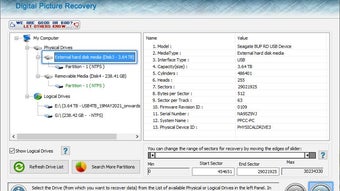
Once installation finishes, launch the program via the Start Menu or desktop shortcut. The main window opens to a clean, three‑panel layout: Device Selection, Scan Options, and Recovery Preview.
Step 4 – Select the Affected Device
Plug the USB device containing the lost photos into your computer. The software automatically detects all connected removable drives and lists them in the left panel. Choose the appropriate drive, then click Next. If the drive is not visible, use the Refresh button to rescan the USB ports.
Step 5 – Choose Scan Mode
Two scanning options are available: Quick Scan (fast, suitable for recently deleted files) and Deep Scan (thorough, for severely corrupted or formatted media). For best results with lost pictures, we recommend starting with a Quick Scan and moving to Deep Scan if the desired files are not found.
Step 6 – Preview and Select Files
After the scan completes, the program presents thumbnails of recoverable images and videos. You can sort results by file type, size, or date. Check the boxes next to the files you wish to restore. The preview feature lets you open a larger view of each picture to verify its integrity before recovery.
Step 7 – Recover to a Safe Location
Click the Recover button and specify a destination folder on a different storage device (never recover files back onto the same corrupted drive). The software copies the selected files, preserving original file names when possible. A progress bar indicates completion, and a final report lists any files that could not be recovered.
Step 8 – Verify Recovered Media
Open the destination folder and confirm that the recovered pictures display correctly. If any files appear corrupted, you can re‑run the Deep Scan or try the Advanced Repair option available in the Tools menu.
Overall, the installation and usage flow is designed for non‑technical users while still providing enough depth for power users who need granular control over scanning parameters.
Compatibility, Pros & Cons
Digital Picture Recovery Software runs on all modern 64‑bit Windows operating systems, including Windows 7, 8, 10, and 11. The application does not support macOS, Linux, Android, or iOS, as it relies on Windows‑specific file system APIs to access raw disk sectors. However, the program can recover files from devices formatted for FAT32, exFAT, NTFS, and even some Linux‑based file systems (ext2/ext3) when the drive is connected to a Windows machine.
Pros
- Free for personal use – no hidden fees or trial limitations.
- Highly effective at photo recovery, with a specialized algorithm that boosts success rates for image files.
- Supports a wide variety of removable media, from flash drives to external HDDs and memory cards.
- User‑friendly interface that guides even beginners through the entire process.
- Preview function lets you verify files before committing to recovery, saving storage space.
- Low system requirements, making it suitable for older PCs.
Cons
- Only available for Windows; macOS and Linux users must seek alternative tools.
- No built‑in cloud backup or synchronization feature.
- Advanced repair tools are limited compared to paid professional suites.
- Deep Scan can be time‑consuming on very large drives (several hours).
Frequently Asked Questions
Can Digital Picture Recovery Software retrieve files from a formatted USB drive?
Yes. The Deep Scan mode reads raw sectors on the drive, allowing it to locate and rebuild files even after the drive has been formatted, provided the data has not been overwritten.
Is the software safe to use on drives with important data?
Absolutely. The program works in a read‑only mode; it never writes to the source device during scanning, eliminating the risk of further data loss.
What image formats can be recovered?
The tool supports JPEG, PNG, BMP, GIF, RAW (including CR2, NEF, ARW), TIFF, and several video containers such as MP4 and AVI.
Do I need an internet connection to recover files?
No. The entire recovery process occurs locally on your computer, ensuring privacy and allowing use on offline machines.
How long does a Deep Scan typically take?
Scan time varies with drive size and condition. On a 500 GB external HDD, a full Deep Scan can take between 2 and 5 hours. Smaller flash drives usually finish within 30 minutes.
Conclusion & Call to Action
Digital Picture Recovery Software stands out as a reliable, free Windows solution for anyone who has lost precious photos, videos, or documents on removable media. Its specialized photo‑recovery engine, intuitive wizard, and offline security make it a trustworthy choice for both casual users and small‑business owners facing accidental deletions or corrupted drives. While the lack of macOS support and limited advanced repair features keep it from being a complete enterprise‑grade suite, its zero‑cost model and high success rates for visual media more than compensate for those gaps. If you’ve encountered a missing snapshot on a USB stick or need to rescue a batch of images from a crashed external HDD, give Digital Picture Recovery Software a try—download it today, run a quick scan, and bring those cherished memories back to life.
Ready to recover your lost pictures? Download Digital Picture Recovery Software now and start the free recovery process.
The program delivers solid photo recovery results, especially for Windows users with limited technical expertise. Its free licensing, clear interface, and reliable preview function make it a top pick for personal data restoration. Minor drawbacks include the absence of macOS support and longer scan times on large drives, but overall it offers excellent value for anyone needing to retrieve lost images.







